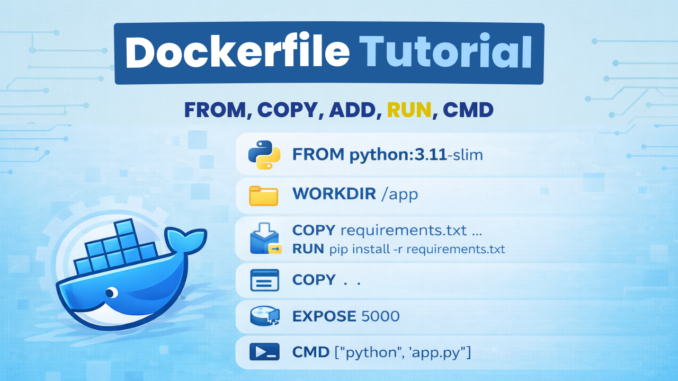
In our previous blog, we learned about Docker basics and commands. Now, we are learning the essential skill of writing a Dockerfile.
In this blog, you will learn:
- What a Dockerfile is and why it’s needed
- Syntax of a Dockerfile
- Explanation of each instruction: FROM, LABEL, WORKDIR, COPY, ADD, RUN, EXPOSE, CMD, and ENTRYPOINT.
- Best practices for efficient Dockerfiles
- How to write a Dockerfile for a Python application
By the end of this blog, you’ll be able to write Dockerfiles confidently for any application.
What Is a Dockerfile?
A Dockerfile is a plain text file that contains a set of instructions used to build a Docker image. Each instruction creates a new layer in the image.
Why You Need a Dockerfile
- Build images consistently every time.
- Share the Dockerfile so anyone can build the same image.
- Store Dockerfiles in Git for version control.
- Run the same image on any machine without compatibility issues.
Before learning Dockerfiles in depth, check our Docker Tutorial for Beginners – Installation, Introduction, and Basic Commands for a solid foundation.
Syntax of a Dockerfile
INSTRUCTION argument
- Instructions are written in uppercase by convention.
- Common instructions are: FROM, LABEL, WORKDIR, COPY, ADD, RUN, EXPOSE, CMD, and ENTRYPOINT.
- Arguments vary for each instruction.
- Docker executes instructions from top to bottom, creating a new layer for each step.
Dockerfile Instructions
1. FROM
Sets the base image for your Docker image. It can be an OS image like Ubuntu or a language image like Python or Java.
Note: Use lightweight base images to reduce image size and improve security.
FROM python:3.11-slim
2. LABEL
Used to add metadata to a Docker image. This helps describe the image.
Arguments are written in key-value format.
LABEL maintainer="venkat@thedevopsguide.in" \
version="1.0" \
description="Docker tutorial app" \
project="The DevOps Guide"
3. WORKDIR
Sets the working directory inside the container. All following instructions run in this directory unless changed.
WORKDIR /app
4. COPY
Copies files or directories from the local system into the Docker image.
COPY requirements.txt .
5. ADD
Similar to COPY, but also supports downloading files and extracting local archives.
Best practice: Use COPY unless you specifically need ADD features.
ADD https://example.com/app.tar.gz /app/
6. RUN
Used to install dependencies or execute commands during the image build process.
RUN pip install --no-cache-dir -r requirements.txt
7. EXPOSE
Documents which port the container listens on. It does not publish the port.
EXPOSE 5000
8. CMD
Defines the default command that runs when the container starts. If multiple CMD instructions exist, only the last one is used.
RUN executes at build time, while CMD runs at container start time. CMD can be overridden at runtime.
CMD ["python", "app.py"]
9. ENTRYPOINT
Similar to CMD, but it is not easily overridden. It is commonly used for fixed startup commands.
ENTRYPOINT ["python", "app.py"]
10. ARG
Defines build-time variables. These variables are not available inside the running container unless passed to ENV.
ARG APP_VERSION=1.0
11. ENV
Defines environment variables that are available inside the running container.
ENV MODE=prod
12. USER
Runs the container using a specified user instead of root.
USER 1001
Best Practices for Dockerfiles
- Use small base images like
python:3.11-slim. - Optimize layers by combining RUN commands.
- Use a
.dockerignorefile. - Ignore unnecessary files like logs, venv/, and .git/.
- Use multi-stage Dockerfiles for smaller final images.
- Avoid running containers as root for better security.
Multi-Stage Dockerfile Example
Multi-stage Dockerfiles help reduce image size by separating the build environment from the runtime environment.
# Stage 1: Build stage
FROM python:3.11-slim AS builder

WORKDIR /app

COPY requirements.txt .

RUN pip install --no-cache-dir --prefix=/install -r requirements.txt

COPY . .


# Stage 2: Runtime stage
FROM python:3.11-slim

WORKDIR /app

COPY --from=builder /install /usr/local

COPY --from=builder /app /app

EXPOSE 5000

CMD ["python", "app.py"]
- The first stage installs dependencies and prepares the app.
- The second stage copies only the required files from the first stage.
- This keeps the final image smaller and more secure.
- Build tools and cache files are not included in the final image.
Python Application Dockerfile Example
For a simple Flask app:
# Base image
FROM python:3.11-slim

# Set working directory
WORKDIR /app

# Copy dependencies
COPY requirements.txt .

# Install dependencies
RUN pip install --no-cache-dir -r requirements.txt

# Copy app code
COPY . .

# Expose port
EXPOSE 5000

# Run the app
CMD ["python", "app.py"]
- Lightweight and clean.
- Works for Flask, Django, or any Python project.
How to Build and Run the Image
# Build Docker image
docker build -t my-flask-app .

# Run container
docker run -p 5000:5000 my-flask-app
Check your app at http://localhost:5000.
Leave a Reply